Option 1 – semi-automated
First of all try to use mlxup tool to update Mellanox NIC firmware. It is a more straightforward tool with the purpose to ease the firmware update process. It is provided as a statically-linked binary file and this tool automates firmware download and flash process.
mlxup requires nmst driver installed to flash the firmware.
Run the tool, it will scan the hardware and ask if you would like to update Mellanox firmware.
That’s all!
In case you want a manual for this tool use this link.
After rebooting the server you make sure the firmware was successfully upgraded.
In case the output of mlxup or /opt/mellanox/bin/flint -d <device_id> query contains two firmware versions listed as follows:
[root@host:/tmp] ./mlxup
Querying Mellanox devices firmware …
Device #1:
———-
Device Type: ConnectX5
Part Number: MCX512A-ACA_Ax_Bx
Description: ConnectX-5 EN network interface card; 10/25GbE dual-port SFP28; PCIe3.0 x8; tall bracket; ROHS R6
PSID: MT_0000000080
PCI Device Name: mt4119_pciconf0
Base GUID: 1070fd0300df2312
Base MAC: 1070fddf2312
Versions: Current Available
FW 16.35.3502 16.35.3006
FW (Running) 16.32.1010 N/A
PXE 3.6.0502 3.6.0902
UEFI 14.25.0017 14.29.0015
Status: Up to date
It means that the NIC is operating with an OLD firmware and you need power cycle the server: not just reboot, but power OFF and then power ON.
After powering off and then powering on the mlxup info will be look this:
[root@host:/tmp] ./mlxup
Querying Mellanox devices firmware …
Device #1:
———-
Device Type: ConnectX5
Part Number: MCX512A-ACA_Ax_Bx
Description: ConnectX-5 EN network interface card; 10/25GbE dual-port SFP28; PCIe3.0 x8; tall bracket; ROHS R6
PSID: MT_0000000080
PCI Device Name: mt4119_pciconf0
Base GUID: 1070fd0300df2312
Base MAC: 1070fddf2312
Versions: Current Available
FW 16.35.3502 16.35.3006
PXE 3.6.0902 3.6.0902
UEFI 14.29.0015 14.29.0015
Status: Up to date
Option 2 – manual
Download and install Nvidia NATIVE NMST drivers and Firmware Tools (MFT) packages.
Nvidia NATIVE NMST installation requires a host reboot!
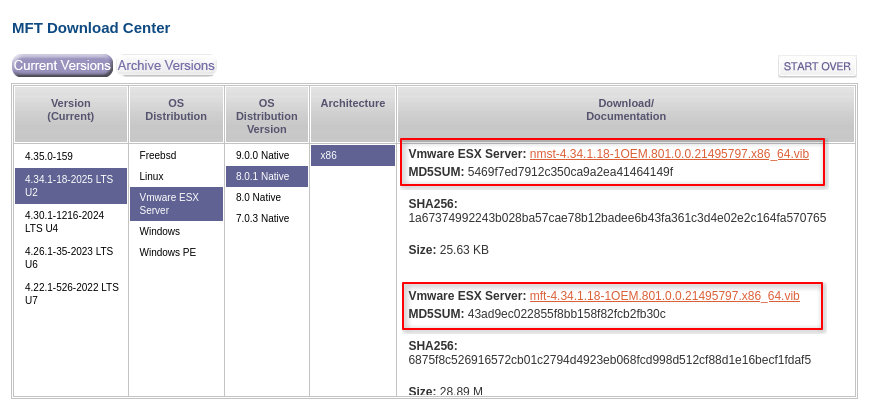
Install with esxcli software vib install --no-sig-check -v /<path>/<vibname>.vib
List devices:/opt/mellanox/bin/mst status
List devices PCI address:/opt/mellanox/bin/mdevices_info -v
Show device info by PCI address:/opt/mellanox/bin/flint -d <PCI_ADDR> query
PSID is required to download correct firmware update: https://network.nvidia.com/support/firmware/firmware-downloads/
MCX512A-ACAT PSID is MT_0000000080
MCX512A-ACUT PSID is MT_0000000425
Unzip the firmware and burn it to the firmware partition with:/opt/mellanox/bin/flint -d mt4119_pciconf0 -i <fw-ConnectX5-rel-16_29_1016-MCX512A-ACA_Ax_Bx-UEFI-14.22.14-FlexBoot-3.6.204.bin> burn
Then reboot or power cycle the host.
Well done.
